To plan a multi-monitor setup for real workflows, start by analyzing your most frequent applications and specific tasks to determine which screens and sizes will boost efficiency. Position your primary monitor at eye level and arrange secondary screens for easy access, minimizing glare and awkward postures. Focus on ergonomic placement and choosing monitors with the right specs to meet your needs. Keep your workspace organized and adaptable. If you want practical tips tailored to your work style, find out more below.
Key Takeaways
- Analyze your core tasks and identify applications that benefit from multi-monitor use for efficient workflow segmentation.
- Prioritize ergonomic positioning to reduce strain and improve comfort during extended work periods.
- Select monitors based on resolution and refresh rate needs, ensuring they support current and future workflow demands.
- Assign specific roles to each screen, such as communication, research, or active tasks, to streamline task switching.
- Regularly review and adjust your setup to optimize ergonomics, organization, and productivity as your work evolves.
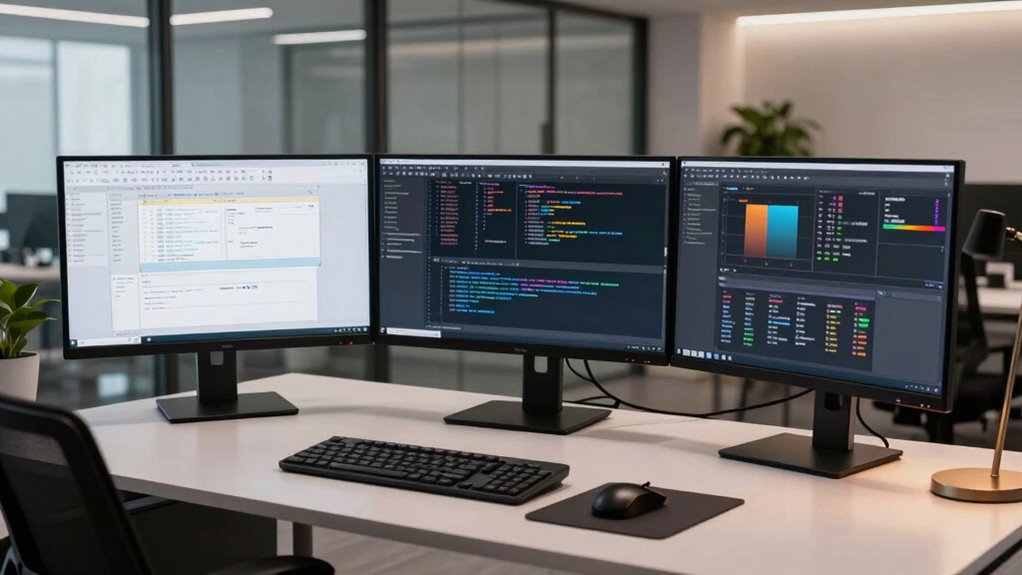
Setting up a multi-monitor workspace can considerably boost your productivity, but only if you plan it around your actual workflow. The key to achieving this is to prioritize functional placement over aesthetics, guaranteeing your setup aligns with how you work daily. Start by analyzing your routine: which applications do you use most often? Do you need multiple screens for multitasking, data comparison, or creative work? Understanding your workflow helps you decide the number and size of monitors that will serve you best without overwhelming your space or breaking your budget.
Once you’ve identified your needs, consider ergonomic considerations to keep your setup comfortable and prevent strain. Your monitors should be at eye level to avoid neck tension, and the screens should be positioned directly in front of you with minimal glare. A good rule is to place the primary monitor directly in front of you and secondary screens to the sides at a slight angle. Keep your keyboard and mouse close enough to prevent reaching or awkward postures, and consider adjustable stands or mounts to customize height and tilt. Remember, a well-planned ergonomic setup reduces fatigue and boosts focus, making your multi-monitor configuration more effective.
Budget constraints are a real factor, so you don’t need the most expensive gear to build an efficient workspace. Focus on quality over quantity—invest in monitors with good resolution and refresh rates that match your tasks, rather than just size. Sometimes, a single high-quality monitor can outperform multiple lower-quality screens. Consider second-hand options or refurbished models if you’re on a tight budget, and look for versatile mounts or stands that can adapt to different monitor sizes. Keep in mind that cable management and proper placement are essential to avoid clutter, which can hinder productivity and create discomfort. Additionally, choosing monitors with adjustable stands can help you tailor your setup for optimal ergonomics.
Finally, avoid overloading your workspace with unnecessary screens just for the sake of appearance. Stick to what truly enhances your workflow. Think about how each monitor will be used: one for email and communication, another for research or references, and a third for active work. This targeted approach ensures your setup remains practical and efficient. Regularly reassess your configuration as your work evolves, making adjustments to improve ergonomics and workflow. Additionally, understanding monitor specifications helps you select the right displays that meet your needs for resolution and refresh rate, ensuring your setup is both functional and future-proof. Incorporating workflow analysis into your planning process can help you identify the most effective monitor arrangement for your specific tasks. Remember, a multi-monitor setup isn’t just about having more screens; it’s about creating a tailored environment that supports your productivity and well-being in real work scenarios.

BoYata Monitor Stand, Adjustable Height Metal Desktop Riser, Black
- Adjustable Height: Twist knob for height customization
- Ergonomic Design: Promotes comfortable eye and monitor level
- High Weight Capacity: Supports up to 33.06 lbs with stability
As an affiliate, we earn on qualifying purchases.
As an affiliate, we earn on qualifying purchases.
Frequently Asked Questions
What Are the Best Monitor Sizes for Different Workflows?
For different workflows, choose monitor sizes based on your tasks. For detailed work like design, opt for 27-inch or larger screens with high resolution and proper monitor calibration to guarantee accuracy. For coding or multitasking, 24-inch monitors work well, providing ample space without clutter. Always prioritize screen resolution and calibration to maintain clarity and color accuracy across your monitors, enhancing productivity and reducing eye strain.
How Do I Manage Cable Organization Effectively?
To manage your cables effectively, start by labeling each cable for easy identification, which saves time during setup or troubleshooting. Use cable management sleeves to bundle cords neatly, preventing tangles and clutter. Keep power and data cables separate to reduce interference. Regularly check and adjust your organization to maintain a clean workspace. Proper cable labeling and sleeves help you stay organized, ensuring your multi-monitor setup remains efficient and clutter-free.
What Software Tools Improve Multi-Monitor Productivity?
You can boost your multi-monitor productivity with software tools like DisplayFusion or UltraMon, which offer extensive software customization options. These tools help you organize windows, create custom monitor profiles, and automate tasks, leading to productivity enhancements. They allow you to seamlessly manage multiple screens, improve workflow efficiency, and reduce clutter, so you stay focused on your work without distraction. Give them a try to optimize your multi-monitor setup effectively.
How Can I Ensure Ergonomic Comfort Across Multiple Screens?
A stitch in time saves nine, so prioritize ergonomic positioning to guarantee comfort across your screens. Adjust monitor heights so your eyes are level, and position them directly in front to prevent neck strain. Use adjustable stands or mounts for comfort optimization, and keep keyboard and mouse at a natural height. This setup reduces fatigue, boosts productivity, and keeps you comfortable during long work sessions.
What Hardware Specifications Are Essential for Smooth Multi-Monitor Use?
For smooth multi-monitor use, you need a robust graphics card with enough video outputs to support your screens. Make certain your system has sufficient RAM and a fast processor for seamless performance. Prioritize monitors with good color calibration for accurate visuals and consider power management features to reduce energy use. This setup helps you work efficiently without lag, keeping everything crisp and responsive across all displays.
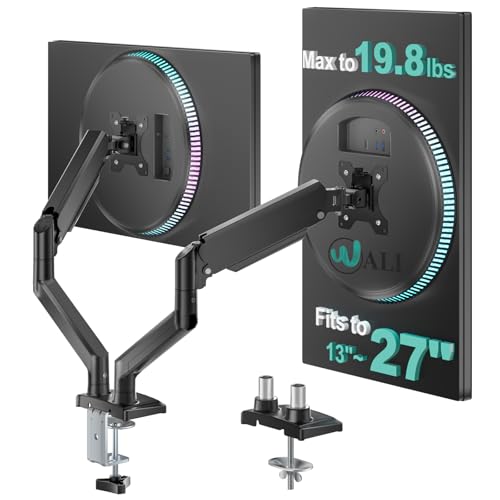
WALI Adjustable Dual Monitor Arm for 13-27 inch Screens, 19.8 lbs per Arm
- Monitor Compatibility: Fits 17” to 32” monitors up to 19.8 lbs
- Adjustable Mounting Options: Supports 75x75mm and 100x100mm VESA patterns
- Desk Compatibility: Fits desks 0.4” to 3.3” thick with C-clamp or grommet base
As an affiliate, we earn on qualifying purchases.
As an affiliate, we earn on qualifying purchases.
Conclusion
Now that you understand how to tailor a multi-monitor setup for your actual workflows, the real challenge begins. Will you prioritize speed, comfort, or flexibility? The key lies in striking the perfect balance—because one wrong move could compromise your efficiency. Are you ready to take the leap and craft a workspace that adapts to your needs, or will you leave it to chance? The choice is yours—what’s next?

Dell 27 Monitor S2725QS, 4K UHD IPS, 120Hz, 5ms, FreeSync Premium
- Blue Light Reduction: Reduces blue light emissions to ≤35%
- High Refresh Rate: 120Hz refresh rate with FreeSync Premium
- Fast Response Time: 5ms response time for smooth visuals
As an affiliate, we earn on qualifying purchases.
As an affiliate, we earn on qualifying purchases.
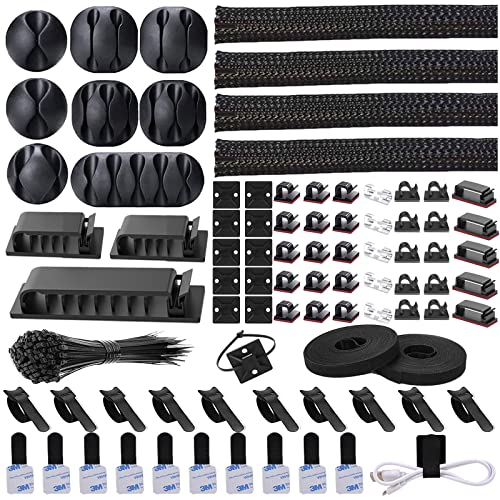
N NOROCME 192 PCS Cable Management Kit 4 Wire Organizer Sleeve
- Complete Cable Management Kit: Includes sleeves, ties, clips, and mounts
- Variety of Cable Clips: Six types, 46 eco-friendly clips in two colors
- Durable Materials: Sturdy, high-quality components for long-lasting use
As an affiliate, we earn on qualifying purchases.
As an affiliate, we earn on qualifying purchases.