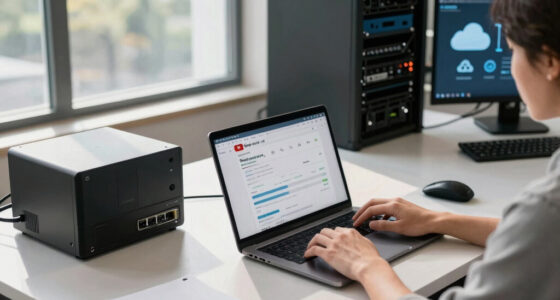

To keep your office WiFi running smoothly, follow the simple rule of allocating at least 10 Mbps per device. This helps prevent slowdowns, guarantees your team stays productive, and handles essential applications like VoIP, streaming, and laptops. Proper access point placement and regular upgrades also boost performance. Stay attentive to your network’s needs—by doing so, you can avoid common issues and create a more reliable wireless environment. Keep going, and you’ll discover more ways to optimize your setup.

Get business pricing on networking and server gear
- Business-only prices and quantity discounts
- Tax-exempt purchasing
- Multiple users, one account, clear invoices
Key Takeaways
- Allocate at least 10 Mbps per device to ensure smooth office WiFi performance.
- Regularly evaluate network capacity needs as team size and technology change.
- Proper access point placement minimizes interference and maximizes signal stability.
- Use dual-band routers (2.4 GHz and 5 GHz) to distribute traffic efficiently.
- Monitor bandwidth usage and upgrade hardware proactively to prevent network congestion.

In today’s increasingly connected workplaces, understanding the Office WiFi Capacity Rule is vital to make certain your team stays productive. This rule helps you gauge how many devices your network can support without sacrificing speed or reliability. When too many gadgets connect simultaneously, network congestion quickly becomes a problem, causing slowdowns and interrupted workflows. Signal interference from other electronic devices, thick walls, or neighboring networks further compounds these issues, reducing your WiFi’s effectiveness. Recognizing these factors lets you plan better and avoid common pitfalls that hamper daily operations.
The core idea behind the Office WiFi Capacity Rule of Thumb is to match your network’s bandwidth to your team’s needs. Think of your WiFi like a highway: the more cars (devices) you add, the more traffic jams you’ll encounter, especially if there are obstacles like signal interference. To prevent this, you need to guarantee your network can handle peak loads without becoming sluggish. Typically, a good starting point is to allocate at least 10 Mbps per device for smooth operation. For instance, if your team uses laptops, VoIP phones, and streaming services during work hours, your network should support that demand comfortably. Remember, this is a guideline, not a strict rule—your actual needs depend on what applications your team uses most. Regularly assessing your network capacity needs ensures your setup adapts to growth and evolving demands.
Another vital aspect is the placement of your WiFi access points. If signals are weak or blocked by walls or other interference sources, even a network with sufficient capacity can underperform. Proper access point placement ensures stable signals across the office space. Avoid placing them near microwaves, cordless phones, or metal objects, as these can cause significant signal interference. Also, consider the frequency band—dual-band routers that operate on both 2.4 GHz and 5 GHz can help distribute traffic and reduce congestion, improving overall network performance. Additionally, understanding network management tools can help you monitor and optimize your WiFi setup more effectively. Regularly reviewing your network’s capacity needs can prevent unforeseen slowdowns, especially as your team expands or adopts new technology. Staying informed about WiFi standards can further assist in selecting equipment that meets your current and future requirements.
Monitoring your WiFi performance regularly helps you stay ahead of issues before they impact productivity. Use network management tools to identify devices that consume excessive bandwidth or are causing interference. Upgrading hardware or adding additional access points might be necessary if your team grows or if you notice persistent slowdowns. Implementing these strategies aligned with the Office WiFi Capacity Rule ensures your network remains robust, minimizing network congestion and signal interference that could disrupt your workday. By maintaining a clear understanding of your network’s capacity and proactively managing it, you create a more efficient, reliable digital environment for everyone.
As an affiliate, we earn on qualifying purchases.
Frequently Asked Questions
How Often Should Office Wifi Capacity Be Reassessed?
You should reevaluate your office WiFi capacity at least every six months or when you notice network congestion or signal interference. Regular evaluations help identify new devices or increased usage that strain the network. Monitoring performance and addressing issues promptly ensures smooth connectivity. If your team grows or new applications are introduced, reassessment might be needed more frequently to maintain ideal WiFi performance and prevent disruptions caused by network congestion.
What Are Signs of Wifi Capacity Issues in an Office?
Your WiFi might be crying for help if pages load slowly, videos buffer endlessly, or connections keep dropping—like a signal lost in a storm. Signal interference from devices or walls can cause disruptions, while bandwidth throttling slows everything down during peak times. If these signs persist, it’s time to reassess your office WiFi capacity, ensuring your network isn’t drowning in traffic or battling interference.
Can Wifi Capacity Impact Employee Productivity?
Yes, WiFi capacity can impact your employee productivity. When bandwidth allocation is insufficient or overwhelmed, employees experience slow internet speeds, causing delays in tasks. Signal interference from other devices or networks can further disrupt connectivity. These issues lead to frustration, reduced efficiency, and longer project turnaround times. Ensuring proper WiFi capacity management helps maintain smooth, fast connections, enabling your team to work effectively without interruptions.
What Equipment Best Supports Office Wifi Capacity?
To support your office WiFi capacity, you should invest in high-quality routers that can handle multiple devices. Place your router centrally to guarantee even coverage and avoid signal interference from walls or other electronics. Regularly update firmware, and consider adding access points or mesh networks if your office is large. This setup minimizes dead zones and maintains strong, reliable WiFi, keeping your team productive and connected.
How Does Office Size Affect Wifi Capacity Planning?
Your office size directly impacts WiFi capacity planning because larger spaces can lead to network congestion and signal interference. As your office expands, you’ll need more access points to make certain of even coverage and reduce dead zones. Consider the layout, number of users, and devices connecting simultaneously to prevent congestion. Proper planning minimizes signal interference, maintaining strong, reliable WiFi throughout the entire office, regardless of its size.
As an affiliate, we earn on qualifying purchases.
Conclusion
Understanding the office WiFi capacity rule is like having a map to navigate a busy city—you avoid traffic jams and dead zones. By knowing how many devices your network can handle comfortably, you guarantee smooth surfing and productivity. Keep this rule in mind, and your office WiFi will flow seamlessly, like a well-oiled machine. Remember, a small tweak can make a big difference—so stay informed and keep your network running strong.
As an affiliate, we earn on qualifying purchases.
As an affiliate, we earn on qualifying purchases.
Halloween Picks
halloween
As an affiliate, we earn on qualifying purchases.