

Microsoft 365 Family is my best overall pick among these cloud storage plans because it combines storage with familiar productivity tools for several people. Microsoft 365 Personal suits one person who wants the same kind of file storage, while Adobe’s Photography Plan is tailored to photo editing and image libraries. These options serve different needs: general files and shared use, creative photo workflows, or rolling video clips from security cameras. The main tradeoffs are whether storage works across your files, is tied to a particular app, or only saves footage from supported cameras. Read on for the full breakdown and help matching a plan to your needs.

Get business pricing on networking and server gear
- Business-only prices and quantity discounts
- Tax-exempt purchasing
- Multiple users, one account, clear invoices
Key Takeaways
Microsoft 365 Family is the broadest fit in this lineup: its appeal is shared use by up to six people alongside productivity software, rather than camera-specific recording.
Microsoft 365 Personal follows the same general file-and-productivity model for one person, so households should compare the two by who needs separate access.
Adobe’s Photography Plan is aimed at people who want Lightroom and Photoshop alongside photo storage; its creative focus makes it a narrower choice than Microsoft 365.
YI/Kami and Blink plans store security-camera footage, with camera count, retention window, and continuous recording distinguishing options more than general file capacity.
Amazon Prime Photos, SME Cloud File Manager, and Team Knowhow have different service scopes, so buyers should confirm supported devices, access methods, and what is actually included before choosing.
| Adobe Creative Cloud Photography Plan 1TB (Photoshop + Lightroom) – 12-Month Subscription |  | Best for Photo Editing | Storage: 1 TB | Subscription duration: 12 months | Included software: Photoshop, Lightroom, Lightroom Classic | VIEW LATEST PRICE | See Our Full Breakdown |
| SME Cloud File Manager |  | Best for Buyers Who Can Verify the Details | Product name: SME Cloud File Manager | Storage capacity: Not provided | Subscription duration: Not provided | VIEW LATEST PRICE | See Our Full Breakdown |
| Amazon Prime Photos: Guide to Amazon’s Cloud Photo Storage Service |  | Best for Learning About a Photo Storage Service | Item type: Guide | Service covered: Amazon Prime Photos | Storage capacity: Not provided | VIEW LATEST PRICE | See Our Full Breakdown |
| Blink Plus Plan with Monthly Auto-Renewal |  | Best for Blink Plan Continuity | Plan name: Blink Plus Plan | Renewal: Monthly auto-renewal | Storage capacity: Not provided | VIEW LATEST PRICE | See Our Full Breakdown |
| Adobe Creative Cloud Photography Plan, 1-Year Subscription with 1 TB Cloud Storage |  | Best for Cross-Device Editing | Subscription: 1 year | Included apps: Lightroom (desktop and mobile), Photoshop (desktop and iPad), Lightroom Classic | Cloud storage: 1 TB | VIEW LATEST PRICE | See Our Full Breakdown |
| YI/Kami Cloud Plan, 3 Months, 5 Cameras, 15-Day Rolling Storage |  | Best for Multi-Camera Coverage | Subscription duration: 3 months | Camera limit: Up to 5 cameras | Storage duration: 15-day rolling storage | VIEW LATEST PRICE | See Our Full Breakdown |
| YI/Kami Cloud Plan, 3 Months, 1 Camera, 7-Day Rolling Storage (Online Code) |  | Best for a Single Camera | Subscription term: 3 months | Camera coverage: 1 camera | Storage: 7-day rolling storage | VIEW LATEST PRICE | See Our Full Breakdown |
| Microsoft 365 Family 12-Month Subscription for Up to 6 People |  | Best for Shared Household Storage | Subscription term: 12 months | Users: Up to 6 people | Cloud storage: Up to 1 TB per person; up to 6 TB total | VIEW LATEST PRICE | See Our Full Breakdown |
| Cloud Storage from Team Knowhow |  | Best for Buyers with Details to Confirm | Provider: Team Knowhow | Product type: Cloud storage solution | Storage capacity: Not specified in provided product data | VIEW LATEST PRICE | See Our Full Breakdown |
| Microsoft 365 Personal, 12-Month Subscription for 1 Person | 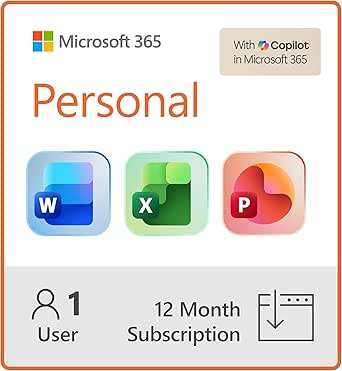 | Best for One-Person Productivity | Subscription term: 12 months | Users: 1 person | Cloud storage: 1 TB | VIEW LATEST PRICE | See Our Full Breakdown |
| YI/Kami Cloud Plan, 3 Months, 1 Camera, Continuous Video Recording Storage |  | Best for Continuous Camera Recording | Duration: 3 months | Camera coverage: 1 camera | Storage type: Continuous video recording | VIEW LATEST PRICE | See Our Full Breakdown |
More Details on Our Top Picks
Adobe Creative Cloud Photography Plan 1TB (Photoshop + Lightroom) – 12-Month Subscription
Adobe’s Photography Plan is the most capable photo-focused option here: its 1 TB of synchronized storage comes alongside Photoshop, Lightroom, and Lightroom Classic, so the plan supports editing as well as keeping files available across devices. That makes it a broader creative toolkit than Amazon Prime Photos: Guide to Amazon’s Cloud Photo Storage Service, whose supplied details describe a guide rather than a bundled editing suite or a stated storage allowance. The tradeoff is that this is not a general-purpose storage plan for every kind of file, and its generative AI tools have a 1,000-credit monthly limit. Cloud sync and AI processing also need an internet connection. This pick fits photographers who will use the apps as well as the space; buyers seeking storage alone may find its software focus unnecessary.
Pros:- Includes Photoshop, Lightroom, and Lightroom Classic
- Provides 1 TB of cloud storage with cross-device synchronization
- Supports desktop, mobile, and iPad use
- Includes 1,000 monthly generative AI credits for editing tools
Cons:- Generative AI use is capped at 1,000 credits per month
- Cloud synchronization and AI processing require an internet connection
- Does not extend or renew an existing 20 GB Photography Plan
Best for: Photographers who want synchronized photo storage bundled with desktop, mobile, and iPad editing apps
Not ideal for: People who need general-purpose file backup or offline-first storage and will not use Photoshop or Lightroom
- Storage:1 TB
- Subscription duration:12 months
- Included software:Photoshop, Lightroom, Lightroom Classic
- AI credits:1,000 per month
- Supported platforms:Desktop, mobile, iPad
- Cloud sync:Cross-device synchronization
Our verdict“Choose this plan if you want photo editing software and 1 TB of synchronized storage in one subscription.”
SME Cloud File Manager
SME Cloud File Manager is difficult to rank as a storage plan because the supplied listing gives no capacity, subscription length, supported devices, or sync details. That lack of information is itself the deciding factor: unlike the Adobe Creative Cloud Photography Plan 1TB, which specifies storage and included apps, this title alone does not establish what a buyer receives. I can’t responsibly infer cloud capacity or features from the product name. It may suit someone who already has separate, reliable documentation for the exact offering, but buyers comparing plans from the listing should treat it as an unknown rather than a confirmed storage choice. Without verifiable terms, I would choose a product with stated capacity and duration for files that need dependable access.
Pros:- The title identifies it as a cloud file manager
- Could suit buyers who have separate documentation for the offering
- Does not claim unprovided capacity or platform details
Cons:- No storage capacity is provided
- Subscription duration and renewal terms are not specified
- Supported platforms, synchronization, and other features are not described
Best for: A buyer who has verified the exact storage capacity, subscription terms, and compatibility from a separate source
Not ideal for: Anyone choosing a plan based on the listing alone, since its storage allowance and service terms are unspecified
- Product name:SME Cloud File Manager
- Storage capacity:Not provided
- Subscription duration:Not provided
- Supported platforms:Not provided
- Synchronization details:Not provided
- Plan terms:Not provided
Our verdict“Consider it only after verifying its storage allowance and terms, since the supplied listing does not establish what the plan includes.”
Amazon Prime Photos: Guide to Amazon’s Cloud Photo Storage Service
This is a guide, not a stated storage subscription. The listing says it covers Amazon’s Prime Photos cloud photo storage service, but provides no storage allowance, plan terms, or supported-device details. That makes it a different kind of roundup entry from the Adobe Creative Cloud Photography Plan 1TB, which explicitly bundles a stated storage amount with editing software. A reader looking to understand a photo service may find a guide relevant, but the supplied data does not show that buying this item grants storage or access to Prime Photos. I would not choose it as a cloud storage plan without checking what the guide contains and obtaining the service’s current terms separately. Its narrow photo focus also gives no stated basis for judging general file storage.
Pros:- The title identifies the service the guide covers
- Focuses on cloud photo storage rather than implying a general file plan
- May help readers researching Amazon’s photo storage service
Cons:- The supplied details do not state that storage access is included
- No capacity, subscription duration, or device support is provided
- The listing gives no information about the guide’s scope
Best for: Readers seeking a guide to Amazon’s Prime Photos service rather than a confirmed storage subscription
Not ideal for: People who need a clearly specified storage allowance, subscription, or general-purpose cloud file plan
- Item type:Guide
- Service covered:Amazon Prime Photos
- Storage capacity:Not provided
- Subscription duration:Not provided
- Supported platforms:Not provided
- Plan terms:Not provided
Our verdict“Choose this only if you want a guide to Prime Photos; the supplied listing does not establish it as a storage plan.”
Blink Plus Plan with Monthly Auto-Renewal
Monthly auto-renewal is the only stated term for Blink Plus, so this entry is best understood as a recurring Blink subscription rather than a documented general cloud storage plan. Compared with the Adobe Creative Cloud Photography Plan 1TB, which names its capacity and bundled apps, the Blink listing leaves the storage allowance and other features unspecified. Automatic monthly renewal may suit an existing Blink customer who wants an ongoing plan, but the listing does not say what is stored, how long it is retained, or which devices and features are covered. That makes it hard to compare on storage value or suitability for cameras. Buyers should confirm the plan’s current terms before relying on it for recordings or treating it as a file-storage alternative.
Pros:- Identifies the plan as Blink Plus
- States that renewal occurs monthly
- May fit customers seeking recurring plan continuity
Cons:- Storage capacity and retention terms are not provided
- Included features and eligible devices are unspecified
- Monthly auto-renewal requires attention to ongoing subscription status
Best for: Existing Blink customers who want a monthly renewing plan and have confirmed its features separately
Not ideal for: People seeking a clearly specified cloud file or camera storage allowance from the listing alone
- Plan name:Blink Plus Plan
- Renewal:Monthly auto-renewal
- Storage capacity:Not provided
- Retention terms:Not provided
- Eligible devices:Not provided
- Plan features:Not provided
Our verdict“This may suit an existing Blink customer, but confirm the storage and plan terms before relying on it.”
Adobe Creative Cloud Photography Plan, 1-Year Subscription with 1 TB Cloud Storage
This standalone one-year plan combines 1 TB of synchronized storage with Lightroom, Photoshop, and Lightroom Classic, giving photographers room to keep work available while editing across supported devices. Its stated Windows and macOS requirements help buyers check compatibility before activation, a practical detail absent from the Adobe Creative Cloud Photography Plan 1TB (Photoshop + Lightroom) – 12-Month Subscription listing. Both entries describe a similar Adobe photo toolkit and monthly AI credit allowance, so I would choose between them based on the specific listing terms and system requirements rather than assume different storage capabilities. The tradeoffs are meaningful: activation and subscription validation require an internet connection and Adobe ID, the apps need about 28 GB of disk space, and the plan does not extend an existing 20 GB Photography Plan.
Pros:- Bundles Lightroom, Photoshop, and Lightroom Classic
- Includes 1 TB of cloud storage and device synchronization
- Provides 1,000 generative AI credits each month
- Lists operating system and hardware requirements for compatibility checks
Cons:- Activation and subscription validation require an internet connection and Adobe ID
- Requires approximately 28 GB of disk space, with more space needed for ongoing use
- Does not extend or renew an existing 20 GB Photography Plan
Best for: Photographers with a compatible Windows or Mac computer who want 1 TB of sync storage and Adobe editing apps
Not ideal for: People with limited device storage, unsupported operating systems, or an existing 20 GB Photography Plan they want to extend
- Subscription:1 year
- Included apps:Lightroom (desktop and mobile), Photoshop (desktop and iPad), Lightroom Classic
- Cloud storage:1 TB
- Generative AI credits:1,000 per month
- Minimum RAM:8 GB
- Recommended RAM:16 GB or more
- Available disk space:Approximately 28 GB
- Windows requirement:Windows 10 version 22H2 or Windows 11 version 23H2 or later
- macOS requirement:macOS 14 Sonoma or later
Our verdict“Choose this standalone plan if your devices meet the listed requirements and you want Adobe’s photo apps alongside 1 TB of synchronized storage.”
YI/Kami Cloud Plan, 3 Months, 5 Cameras, 15-Day Rolling Storage
The five-camera limit makes this YI/Kami plan a better fit for a home with several compatible cameras than the single-camera YI/Kami 7-Day plan. It keeps 15 days of rolling footage, giving you more time to check an event before older clips are replaced. Continuous coverage without cooldown periods is useful when gaps in recording would matter, while encrypted access adds protection for stored footage. The tradeoff is its narrow ecosystem: it works with YI Home and Kami Home cameras, not as a general file-storage service like Microsoft 365 Family. Its three-month term also means you need to renew to keep cloud coverage beyond that period. Choose it when camera count and a longer footage window matter more than broader storage uses.
Pros:- Covers up to five compatible cameras on one plan
- Keeps a 15-day rolling window of footage
- Continuous coverage has no cooldown periods
- Encrypted access protects stored footage
Cons:- Older footage is replaced after the 15-day rolling window
- Requires a subscription to maintain coverage
- Limited to YI Home and Kami Home cameras
Best for: YI Home or Kami Home owners who want continuous cloud footage from several cameras and a 15-day review window
Not ideal for: People seeking general-purpose file storage, longer-term video archives, or a plan that works beyond YI and Kami cameras
- Subscription duration:3 months
- Camera limit:Up to 5 cameras
- Storage duration:15-day rolling storage
- Compatibility:YI Home and Kami Home cameras
- Coverage:Continuous, with no cooldown periods
- Footage security:Encrypted access
- Access method:PC/Mac online code
Our verdict“Choose this plan if you need continuous, short-term cloud recording for several YI or Kami cameras.”
YI/Kami Cloud Plan, 3 Months, 1 Camera, 7-Day Rolling Storage (Online Code)
For one compatible camera, this plan offers a straightforward way to keep a seven-day rolling record online. Like the five-camera YI/Kami 15-Day plan, it provides continuous coverage without cooldown periods; the difference is that this option trades both camera capacity and retention time for a smaller scope. That makes sense for a door, nursery, or other single-camera view where a week is enough time to review footage. It is not a general-purpose cloud drive like Microsoft 365 Personal, and it will not serve a multi-camera setup without another plan. The three-month term also limits how long the coverage lasts before renewal. Its value is in matching the storage window and camera count to a focused setup.
Pros:- Covers one camera for a focused setup
- Records continuously without cooldown periods
- Encrypts footage for account-holder access
- Supports YI Home and Kami camera series
Cons:- Footage is retained for only seven rolling days
- Covers just one camera
- Coverage lasts three months before renewal is needed
Best for: A YI or Kami camera owner who needs a week of continuous cloud footage from one camera
Not ideal for: Households with multiple cameras or buyers who need footage retained for longer than seven days
- Subscription term:3 months
- Camera coverage:1 camera
- Storage:7-day rolling storage
- Cooldown periods:None
- Compatible camera series:YI Home and Kami
- Minimum system requirements:Android, Windows, Mac OS X
- Footage access:Encrypted; accessible to account holders
Our verdict“Pick this plan for one YI or Kami camera when a seven-day rolling history is sufficient.”
Microsoft 365 Family 12-Month Subscription for Up to 6 People
Up to 1 TB per person and sharing for as many as six people make Microsoft 365 Family the broadest shared-storage choice in this group: it can support household documents and files, unlike the camera-specific YI/Kami plans. The included Word, Excel, PowerPoint, and Outlook apps give the subscription a second purpose, so several people can use it for work or school as well as storage. Compared with Microsoft 365 Personal, the Family plan is built for multiple account holders, while Personal keeps the included storage and apps for one person. The tradeoff is that each user needs a Microsoft account, and the plan auto-renews annually unless managed in account settings. Its full storage allowance also depends on sharing among the eligible people.
Pros:- Can be shared with up to six people
- Includes up to 1 TB of cloud storage per person
- Bundles premium Word, Excel, PowerPoint, and Outlook apps
- Supports Windows, Mac, iPhone, iPad, and Android
Cons:- Requires a Microsoft account to redeem and install
- Auto-renews annually unless managed in the account
- The storage benefit is less relevant to people who do not need the included apps or sharing
Best for: Households of two to six people who want individual cloud storage alongside Office apps across their devices
Not ideal for: A solo user who does not need shared access, or someone looking only for camera footage storage
- Subscription term:12 months
- Users:Up to 6 people
- Cloud storage:Up to 1 TB per person; up to 6 TB total
- Office apps:Word, Excel, PowerPoint, Outlook
- Compatible devices:Windows, Mac, iPhone, iPad, Android
- Delivery:Digital download
- Redemption:Microsoft account required
- Renewal:Auto-renews annually; managed through Microsoft account
Our verdict“Choose Family if several people need personal cloud storage and Office apps under one subscription.”
Cloud Storage from Team Knowhow
This Team Knowhow listing is difficult to rank alongside plans with stated capacity and terms because the available product information gives no storage limit, duration, device support, or feature details. That absence matters for a cloud storage plan: a buyer cannot tell how much they can store or how they will retrieve it. By comparison, Microsoft 365 Personal specifies 1 TB for one person and names its supported devices, while the YI/Kami plans define camera counts and rolling footage windows. Team Knowhow is identifiable as the provider, but that alone does not show whether it fits document backup, photo libraries, or another use. I would seek the full plan details before choosing it. Without them, its role here is limited to buyers who can verify the offer directly.
Pros:- Identifies Team Knowhow as the provider
- Could suit buyers who can confirm plan details through another source
- Cloud storage is the stated product category
Cons:- No storage capacity is provided
- No term, compatibility, or retrieval details are listed
- The available information does not establish which storage needs it supports
Best for: A buyer who already has access to full Team Knowhow plan details and can confirm capacity, term, and device support before purchase
Not ideal for: Anyone who needs to compare storage capacity, supported devices, or service duration from the listing alone
- Provider:Team Knowhow
- Product type:Cloud storage solution
- Storage capacity:Not specified in provided product data
- Subscription duration:Not specified in provided product data
- Compatible devices:Not specified in provided product data
- Storage features:Not specified in provided product data
Our verdict“Consider this only after confirming its capacity, duration, compatibility, and access terms.”
Microsoft 365 Personal, 12-Month Subscription for 1 Person
One terabyte for one person makes Microsoft 365 Personal a clear fit for an individual who wants everyday file storage bundled with familiar productivity apps. Word, Excel, PowerPoint, and Outlook run across Windows, Mac, and mobile devices, so files and work can follow the same user between screens. Compared with Microsoft 365 Family, Personal does not provide storage sharing for a household; that narrower setup is easier to match to one account holder. It also has broader file uses than either YI/Kami plan, which stores camera footage for a short rolling window. The drawbacks are the Microsoft account requirement and annual auto-renewal, both of which matter when managing access and continued service. This is a productivity subscription with cloud storage, rather than a standalone storage plan.
Pros:- Includes 1 TB of cloud storage for one person
- Bundles premium Word, Excel, PowerPoint, and Outlook
- Works across Windows, Mac, iPhone, iPad, and Android
- Apps receive automatic updates
Cons:- Requires a Microsoft account for activation
- Auto-renews annually
- Storage is tied to a subscription that also includes apps
Best for: An individual who wants 1 TB of general cloud storage together with Office apps on computer and mobile devices
Not ideal for: Families who want shared storage, or buyers seeking standalone storage without Office apps or annual renewal
- Subscription term:12 months
- Users:1 person
- Cloud storage:1 TB
- Included apps:Word, Excel, PowerPoint, Outlook
- Compatible devices:Windows, Mac, iPhone, iPad, Android
- Delivery:Digital download
- Activation:Microsoft account required
- Renewal:Auto-renews annually
Our verdict“Choose Personal if you are the sole user and want cloud storage bundled with Office apps.”
YI/Kami Cloud Plan, 3 Months, 1 Camera, Continuous Video Recording Storage
Continuous recording for one camera gives this YI/Kami plan a different purpose from the YI/Kami 7-Day Rolling Storage plan, which keeps a shorter rolling window. That distinction matters if you want footage saved continuously rather than only within a rolling retention period. The three-month term also gives a single-camera owner a defined subscription period, while the YI/Kami 5-Camera, 15-Day Rolling Storage plan is aimed at monitoring several cameras.
Encrypted cloud access can help preserve footage if a camera is damaged or stolen, and the plan specifies no cooldown periods on advanced cloud plans. Its limits are clear: it covers one camera and works only with compatible YI Home or Kami models. I’d choose it for uninterrupted recording from one compatible camera, but skip it if you need multi-camera coverage or a rolling-storage plan.
Pros:- Continuous video recording storage
- No cooldown periods on advanced cloud plans
- Encrypted footage is accessible to account holders
- Cloud storage can preserve footage if the camera is stolen or damaged
Cons:- Plan is specified for only one camera
- Requires a compatible YI Home or Kami camera
Best for: Owners of one compatible YI Home or Kami camera who want continuous cloud recording for a three-month term.
Not ideal for: Households monitoring multiple cameras or owners of cameras outside the YI Home and Kami series.
- Duration:3 months
- Camera coverage:1 camera
- Storage type:Continuous video recording
- Compatibility:YI Home and Kami camera series
- Standard Plan camera limit:Up to 5 cameras
- Minimum operating systems:Android, Windows, Mac OS X
Our verdict“Choose this plan for continuous cloud recording from one compatible YI or Kami camera; pick a multi-camera or rolling-storage plan if those needs fit better.”

How We Picked
I ranked these plans by how well their storage purpose matches a clear buyer need, how many people or devices they can serve, and how usable the storage appears for that purpose. Broad file plans with familiar productivity workflows rank ahead of narrow services when they can serve more everyday needs; creative and camera plans rank well for buyers whose content matches their specific tools or devices. For camera storage, I weighed the listed camera allowance, retention period, and continuous recording option because those determine what footage a buyer can retrieve later.
The lineup mixes subscriptions, service guides, and plans with distinct ecosystems, so I also considered how clearly a buyer can understand the fit and limits from the product description. A plan’s specialized features do not make it the best general-purpose option, and a broad plan is not a substitute for camera recording. Where the listing gives little detail about capacity, compatibility, or sharing, I treat that uncertainty as a reason to verify terms before committing.
Factors to Consider When Choosing Cloud Storage Plans
Before choosing a plan, decide what you need to store and how you expect to retrieve it. The products here range from shared file storage to edited photo libraries and camera footage, and those uses have different requirements.
Match the storage to the content
Start by listing the files you actually need to keep: documents, photo originals, edited images, or security footage. A photo workflow can benefit from storage connected to editing tools, while everyday household files call for broad access across common devices. Camera footage has a different purpose: the retention window determines how far back you can review events. Buying a plan based on its storage label alone can leave you with space that does not work with your apps or devices. Check whether the service handles the file types and retrieval method you rely on. Choose the plan around the content and the way you will use it.
Check how many people and devices need access
Count the people who need their own access, not just the number of devices in your home. A family plan may simplify a shared subscription, but separate accounts can matter for privacy and keeping libraries distinct. Camera plans count supported cameras, which is a different limit from the number of household members who can view footage. Before subscribing, check whether sharing means independent accounts, shared folders, or simply access from several devices. Consider what happens when someone leaves the household or a camera is replaced. These details can affect day-to-day usability more than the headline capacity.
Choose a retention period that fits your review habits
For camera footage, a rolling storage period means older recordings may be replaced as new footage arrives. Think about how long it usually takes you to notice an event and decide to review it; a shorter window can be a poor fit if you check footage infrequently. Continuous recording may preserve a fuller timeline, while event-based recording can focus on moments flagged by the camera. Confirm how the plan defines and retrieves stored clips before relying on it for a specific need. Also check whether retention applies per camera or to a shared account. These distinctions matter more than comparing camera plans by name alone.
Treat ecosystem compatibility as a buying requirement
Some plans make the most sense when you already use their software or devices. That can reduce friction, but it can also make switching harder if your camera, editing app, or account changes. Verify that your current devices and operating systems are supported, and look for a clear way to download or export files. A service guide or broadly named file manager may not describe the exact features included in a subscription, so confirm the current terms with the provider. Buyers should also check whether the service works in the locations where they travel or keep equipment. Compatibility should be confirmed before you move a library or depend on cloud footage.
Decide when bundled tools are worth the commitment
A bundle can make sense when you already need its included tools, because the storage then supports work you would do anyway. If you only want a place to keep files, bundled editing or office software may add complexity rather than value. Compare the practical workflow: how files sync, where they appear, and whether sharing is easy for the people who need them. Subscription terms also matter, especially renewal timing and how access changes if you stop paying. Keep a separate copy of important files if losing account access would disrupt work or family records. The best bundle is the one whose extra tools have a real role in your routine.
Frequently Asked Questions
Can I use a camera cloud plan to back up my documents and photos?
Usually, a camera plan is designed to retain footage from supported cameras, not serve as a general file drive. Its camera limit and retention period describe video storage rather than space for documents or a personal photo library. If you need both, plan for separate services or confirm explicitly that the provider supports ordinary file uploads. Do not assume that the word “cloud” means every type of file is included. Check how you can download footage and what happens when the plan expires.
Should I choose Microsoft 365 Family or Personal if we share a household?
Choose based on how many people need independent access and whether each person will use the included productivity tools. Family is designed for up to six people, while Personal is for one, so sharing a home does not by itself determine the right fit. Check how each person’s storage and files are separated, since shared access and a shared folder are not the same thing. If only one person will manage the files, a single-user plan may be simpler. Confirm the current account and storage terms before subscribing.
Is a photo-focused plan a good choice for my entire photo archive?
It can suit an archive built around the plan’s editing software, especially if you want storage close to your photo workflow. Before moving an existing library, check the included storage amount, supported formats, export options, and how originals and edited versions are handled. A plan tied to creative tools may be less convenient for relatives who only want to browse or download shared pictures. Keep an independent backup of irreplaceable originals. The right choice depends on whether editing convenience or broad, simple sharing matters more to you.
How much camera retention do I need?
Base the retention period on how often you review alerts and how long it might take to discover an incident. A short rolling window may work if you check events promptly, while infrequent checks call for more time to retrieve older clips. Continuous recording can help when you need context before and after an event, but confirm how it affects storage and playback. Also consider how many cameras need coverage, since a plan for one camera may not fit a larger setup. Read the provider’s definition of saved footage before relying on a specific retention promise.
What should I verify before moving files to a lesser-known cloud service?
Confirm the exact storage capacity, supported file types, upload limits, account recovery process, sharing controls, and export method. Check whether the service syncs across the devices you use and whether you can retrieve files if you end the subscription. A general product name or service guide may not specify what features are included in the current plan. Keep a second copy of important files until you have tested how downloading and restoring work. This is especially useful before moving a large archive or making the service your only copy.
Conclusion
For most households, Microsoft 365 Family is my best overall pick because it serves multiple people and pairs file storage with productivity tools; Microsoft 365 Personal is the simpler fit for one user. For value, I would start by comparing Personal against Family based on the number of people who will use it, since the right fit depends on account needs rather than storage alone. Adobe’s Photography Plan is my premium creative pick for buyers who want photo editing and storage in one workflow. Beginners who mainly need a familiar place for personal files may find Microsoft 365 Personal the most straightforward starting point. For security-camera footage, choose among Blink and YI/Kami by camera compatibility, camera count, and retention needs; for broader photo-service or file-manager options, verify the included features and access terms before deciding.